

Viewing Results in Donobu Studio
Navigate the results view in Donobu Studio to inspect flow timelines, diagnose failures, review screenshots and video, and track token usage.
Donobu Studio provides a detailed results view for every flow — whether it was created in Studio or run via the Donobu Playwright Extension. Results are automatically synced to Studio when running locally.
What a flow contains
Each flow in Studio includes:
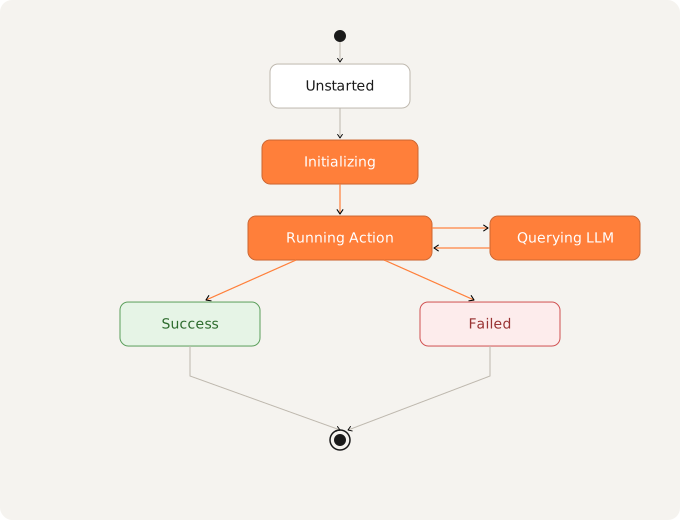
- Run state —
SUCCESSorFAILED - Step-by-step timeline — every tool call the AI made (or replayed from cache), in order, with timestamps
- Screenshots — a screenshot captured after each tool call
- Video — a full replay of the browser session (when video recording is enabled)
- Metadata JSON — the raw metadata attached to the flow, including token usage and run mode
<!-- [SCREENSHOT: Studio flow detail screen showing the timeline, screenshots, and metadata panel] -->
Navigating to a run
- Select View Flows from the sidebar navigation.
- You will see all recent flows, sorted by time.
- Search by Name, Description or Flow ID.
- Click the View Details icon under Actions to open its detail view.
<!-- [SCREENSHOT: Studio flow list showing the sidebar with several flows and the search bar] -->
If you receive a failing CI notification (e.g. from Slack or a GitHub Actions failure email), look for the flow ID in the notification or in the Playwright report's test-flow-metadata.json attachment. Paste it into Studio's search to find that run.
Diagnosing failures
The List and Canvas views show every tool call the AI made, in order. For each step you can see:
- The tool name and a description of that call, e.g. "Opening the appearance menu to switch to Dark mode."
- Whether it succeeded or failed
- The screenshot taken immediately after the call
- The current URL
- The times the action started and completed
- The outcome of the call
- Optional additional debugging information, e.g. the selector that matched when finding an element to click
To understand why a test failed:
- Find the first step that failed or produced an unexpected result
- Compare the screenshot at that step against what you expected to see
- For cached runs, check whether the run mode was Deterministic (replaying a stale cache) or Autonomous (the AI was actually running)
Playing the video can also help you see the full context leading up to a failure.
<!-- [SCREENSHOT: Flow detail view with a failed step highlighted, showing the error message and screenshot] -->
Understanding run modes
The details screen shows the run mode for the flow:
- Autonomous — the AI made the decisions; the flow was not cached or the cache was invalidated
- Deterministic — the flow replayed a cached sequence with minimal calls to the AI
A test that passes in Autonomous mode but fails in Deterministic mode usually means the cached sequence has gone stale. Delete the relevant .cache-lock/ entry and re-run to regenerate.
Token usage
Each flow's detail view shows input and output token counts for the run. Use this to:
- Identify unusually expensive flows (high token counts may indicate the AI is struggling and taking many exploratory steps)
- Compare token usage between Autonomous and Deterministic runs (Deterministic runs should use very few tokens)
- Track cost over time as your test suite grows
<!-- [SCREENSHOT: Token usage section of a flow detail view, showing input/output token counts] -->