

Quick Start
Go from a fresh Donobu installation to a passing test in under five minutes.
This guide takes you from a fresh Donobu installation to a passing test in under five minutes.
Step 1 — Get an API key
The easiest way to get started is with a Donobu API key:
- Sign in to the Donobu website.
- Navigate to Application → Keys.
- Copy any existing key, or create a new key and copy it.
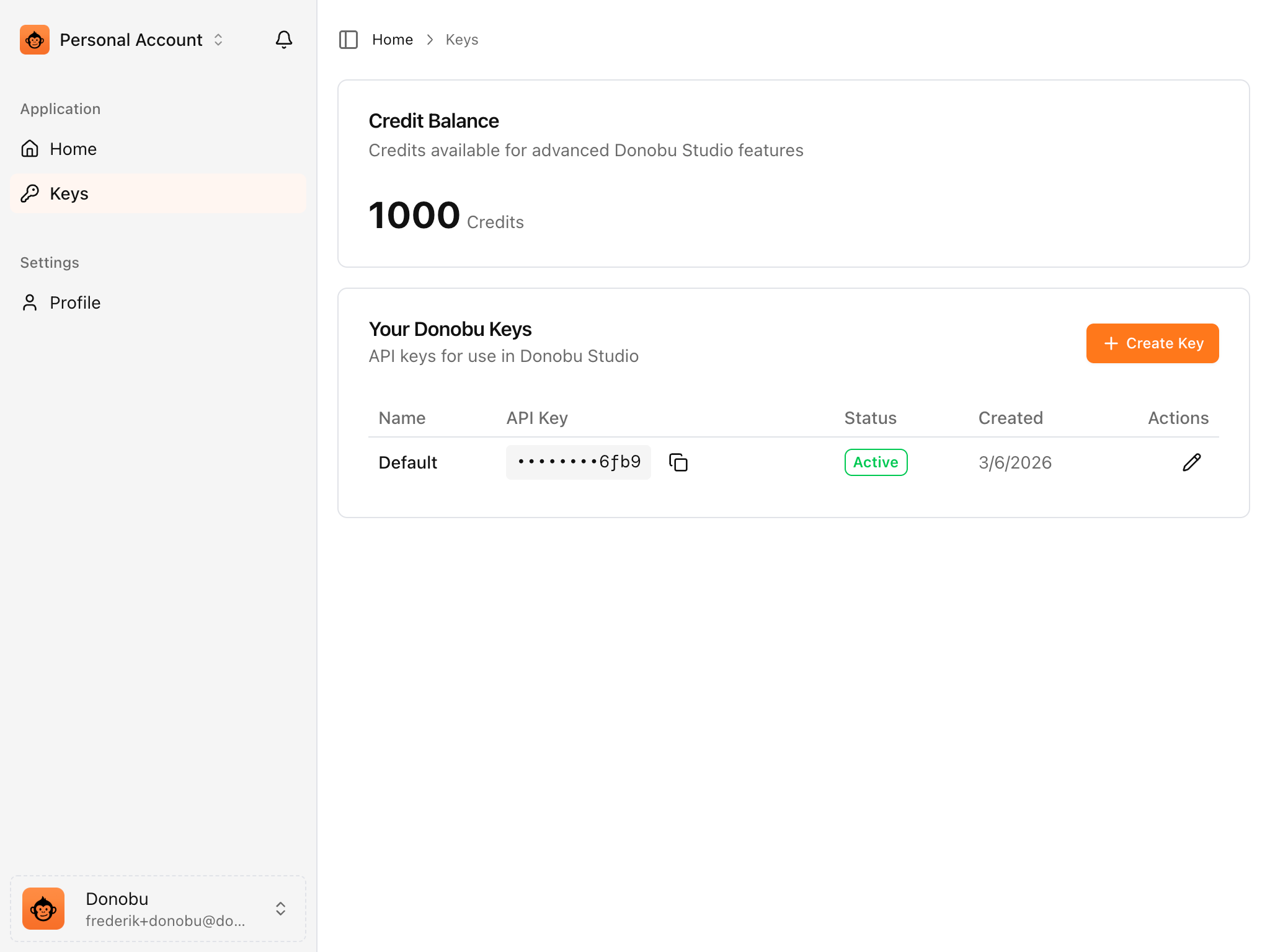
Set it as an environment variable:
export DONOBU_API_KEY=your_key_here
You can also add it to a .env file in your project root — see Playwright's guide to .env files for details.
For CI pipelines, add it as a secret — see CI/CD Integration.
tip
Using a different LLM? Donobu also supports Anthropic, OpenAI, and Google Gemini. Other providers are available for paid accounts — see AI Provider Configuration for details, or visit the Pricing page.
Step 2 — Write your first test
Create tests/example.test.ts:
import { expect, test } from '@donobu/test';

test('wikipedia search', async ({ page }) => {
  await page.goto('https://en.wikipedia.org');

  // Ask the AI to perform a multi-step interaction.
  await page.ai(
    'Hide the right sidebar. Then select the appearance menu at the top and switch to "Dark" mode.',
  );

  // Assert a natural-language visual condition about the resulting page
  await page.ai.assert(
    'The page is now in dark mode (light text on a dark background).',
  );
});
Step 3 — Run the test
npx donobu test tests/example.test.ts
On the first run, the AI executes the flow autonomously — deciding where to click to hide the sidebar, finding the appearance menu icon, etc. The resulting action sequence is written to a cache file (.cache-lock/example.test.ts.cache.js).
On every subsequent run, the cached sequence is replayed without calling the AI, so the test runs fast. Note that some steps — such as AI-powered assertions (page.ai.assert) — still call the AI on every run, since they evaluate the current page state rather than replaying a fixed sequence.
What to expect in the output
Running 1 test using 1 worker

  ✓  1 [chromium] › tests/example.test.ts:3:5 › wikipedia search (21.0s)

  1 passed (22.3s)

To open last HTML report run:

  npx playwright show-report
You will also see some output from Donobu about the test run that was created. If you would rather suppress this additional output, simply set LOG_LEVEL=error when running the tests.
An HTML report is generated at playwright-report/index.html. Open it with the given command (npx playwright show-report) to see screenshots, video, and the attached test-flow-metadata.json for each test.
The test runs will also appear in Donobu Studio, where you can view the action timeline and inspect individual tool calls.
Next steps
- Enable self-healing: Self-Healing Tests
- Understand how caching works: Caching System
- Explore the full set of Donobu Playwright extensions, starting with
page.ai() - Add Donobu to your CI/CD pipeline: CI/CD Integration