

Data Extraction with Schemas (Tutorial)
Use page.ai.extract() and page.ai() with Zod schemas to pull structured data from web pages and assert on the results.
In this tutorial, you'll learn how to extract structured data from web pages using the Donobu Playwright Extension. You'll use Zod schemas to define the shape of the data you want, and then assert on the extracted values.
Prerequisites
- A working Donobu Playwright test project (see Your First AI Test)
- The
zodpackage installed:npm install zod
Understanding extraction methods
Donobu provides two ways to extract data:
| Method | When to use |
|---|---|
page.ai(instruction, { schema }) | When you need the AI to navigate and interact with the page first, then return structured data |
page.ai.extract(schema) | When the data is already visible on the current page — no navigation needed |
Test 1: Extract data from the current page
Create tests/extract-data.spec.ts:
import { expect, test } from '@donobu/test';
import { z } from 'zod';

test('extract product information from a product page', async ({ page }) => {
  await page.goto('https://www.lush.com/us/en_us/p/sticky-dates-shower-gel');

  const product = await page.ai.extract(
    z.object({
      name: z.string().describe('The product name'),
      price: z.string().describe('The product price including currency symbol'),
      rating: z.number().describe('The star rating out of 5'),
      inStock: z.boolean().describe('Whether the product is in stock'),
    }),
  );

  expect(product.name).toContain('Sticky Dates');
  expect(result.price).toBeTruthy();
  expect(product.rating).toBeGreaterThan(0);
  expect(product.rating).toBeLessThanOrEqual(5);
  console.log(
    `Found: ${product.name} at ${product.price} (${product.rating} stars, ${
      product.inStock ? 'in stock' : 'out of stock'
    })`,
  );
});
Key points:
page.ai.extract()reads data directly from the current page without taking any actions.- The Zod schema defines the shape of the data you expect.
- Use
.describe()on each field to tell the AI what to look for. - The returned object is fully typed thanks to Zod inference.
To see the test in action, use this command:
npx donobu test tests/extract-data.spec.ts --headed
note
When running tests as part of your regression suite, don't use the --headed argument. We're just adding that here so you can visually see the test executing. The default for Playwright is to run the tests in "headless" mode.
Test 2: Navigate and extract with page.ai()
When you need the AI to do something before extracting data, use page.ai() with a schema. Create tests/extract-data-ai.spec.ts:
import { expect, test } from '@donobu/test';
import { z } from 'zod';

test.setTimeout(180_000);
test('search and extract the first result', async ({ page }) => {
  await page.goto('https://www.awaytravel.com/');

  const result = await page.ai(
    'Search for "carry-on" and go to the first product page',
    {
      schema: z.object({
        productName: z.string().describe('The name of the product'),
        price: z
          .string()
          .describe('The listed price, including the currency symbol'),
        color: z.string().describe('The color of the product'),
      }),
    },
  );

  console.log(
    `Found: ${result.productName} in ${result.color} for ${result.price}`,
  );
  expect(result.productName.toLowerCase()).toContain('carry-on');
  expect(result.price).toBeTruthy();
  expect(result.color).toBeTruthy();
});
Run the test with this command:
npx donobu test extract-data-ai.spec.ts --headed
The AI will:
- Search for the product
- Navigate to the first result
- Extract the structured data from the product page
- Return it validated against your schema
Also notice that it will dismiss any cookie notifications that get in the way.
Test 3: Extract a list of items
Schemas can include arrays for extracting multiple items. Create tests/extract-list.spec.ts:
import { expect, test } from '@donobu/test';
import { z } from 'zod';

test.setTimeout(180_000);
test('extract top search results', async ({ page }) => {
  await page.goto('https://bevmo.com/');

  const results = await page.ai('Search for "chocolate"', {
    schema: z.object({
      searchResults: z
        .array(
          z.object({
            name: z.string(),
            price: z.string(),
          }),
        )
        .describe('The first 5 search results with name and price'),
    }),
  });

  expect(results.searchResults.length).toBeGreaterThan(0);
  expect(results.searchResults.length).toBeLessThanOrEqual(5);

  for (const item of results.searchResults) {
    expect(item.name).toBeTruthy();
    expect(item.price).toBeTruthy();
    console.log(`Found: ${item.name} for ${item.price}`);
  }
});
To run the test, use this command:
npx donobu test tests/extract-list.spec.ts --headed
Test 4: Use assertions for validation
For simple true/false checks, page.ai.assert() is often simpler than extracting data. Create tests/ai-assert.spec.ts:
import { test } from '@donobu/test';

test.setTimeout(180_000);
test('verify product page has required elements', async ({ page }) => {
  await page.goto(
    'https://us.pandora.net/en/rings/promise-rings/double-heart-sparkling-ring/161198C01.html',
  );

  await page.ai.assert(
    'The page shows a product with a name, price, and add-to-bag button',
  );
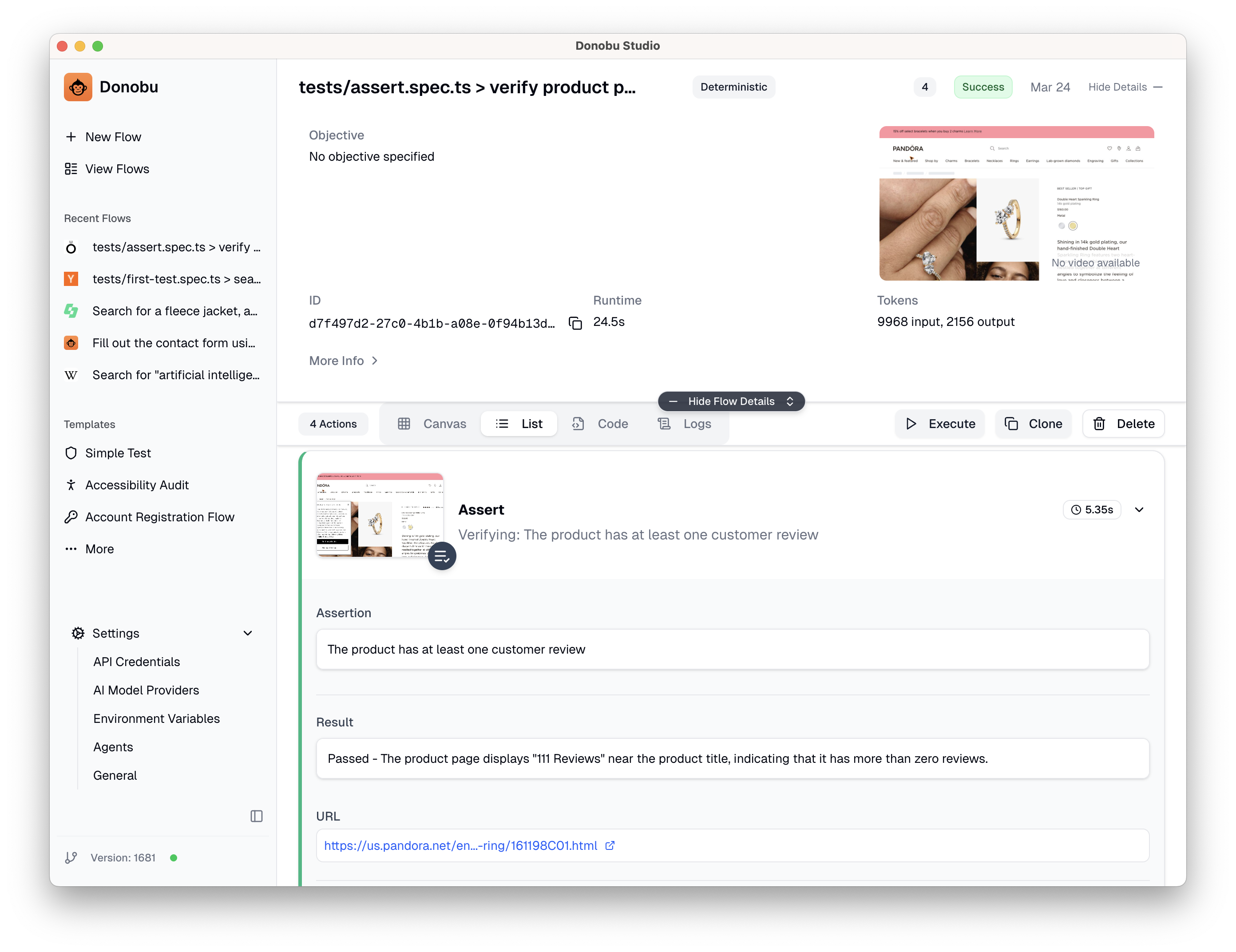
  await page.ai.assert('The product has at least one customer review');
  await page.ai.assert('The price is displayed in USD');
});
page.ai.assert() throws if the condition is not met, just like Playwright's expect(). To run the test, use this command:
npx donobu test tests/ai-assert.spec.ts --headed
You can see the full reasoning behind each assert by viewing the resulting flow in Donobu Studio. See Viewing Extension Results in Studio for more details.
What you learned
page.ai.extract(schema)reads data from the current page without navigationpage.ai(instruction, { schema })navigates first, then extracts structured data- Zod schemas define the shape of extracted data and provide TypeScript type safety
.describe()on schema fields guides the AI to find the right datapage.ai.assert()is a simpler alternative for true/false validation
What to try next
- See the API Reference for page.ai.extract() for advanced options.
- Learn about Caching to understand how
page.ai()actions are cached. - Set up CI/CD integration to run tests in your pipeline.